Jump to content
View in the app

A better way to browse. Learn more.

FGX Native

A full-screen app on your home screen with push notifications, badges and more.

To install this app on iOS and iPadOS
  1. Tap the Share icon in Safari
  2. Scroll the menu and tap Add to Home Screen.
  3. Tap Add in the top-right corner.
To install this app on Android
  1. Tap the 3-dot menu (⋮) in the top-right corner of the browser.
  2. Tap Add to Home screen or Install app.
  3. Confirm by tapping Install.

CodeGear <Dev Days of Summer>: A smart backpack controlled from a mobile application with FGX Native

Screenshot_20240807-064137.pngScreenshot_20240807-063822.pngScreenshot_20240807-063942.pngimage.png

Don't miss it!

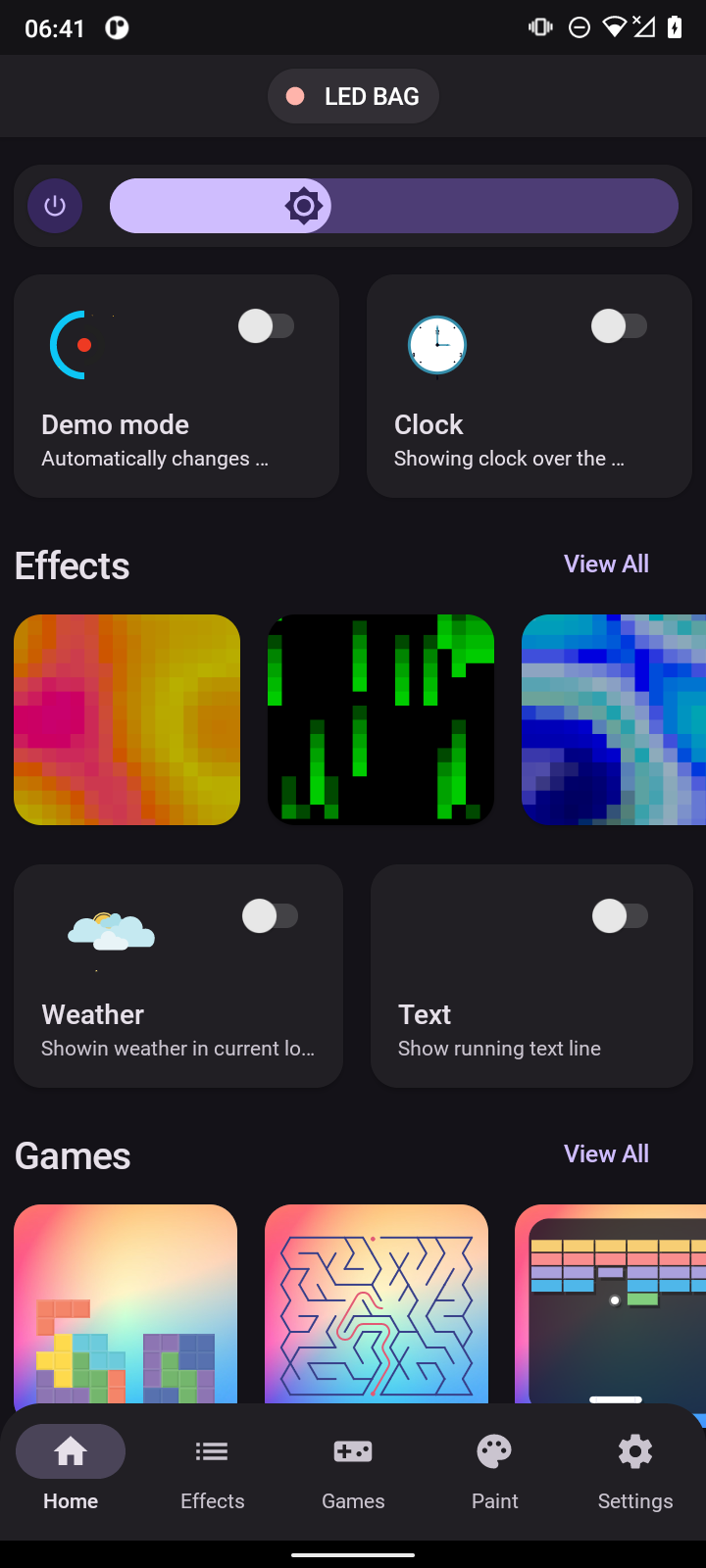
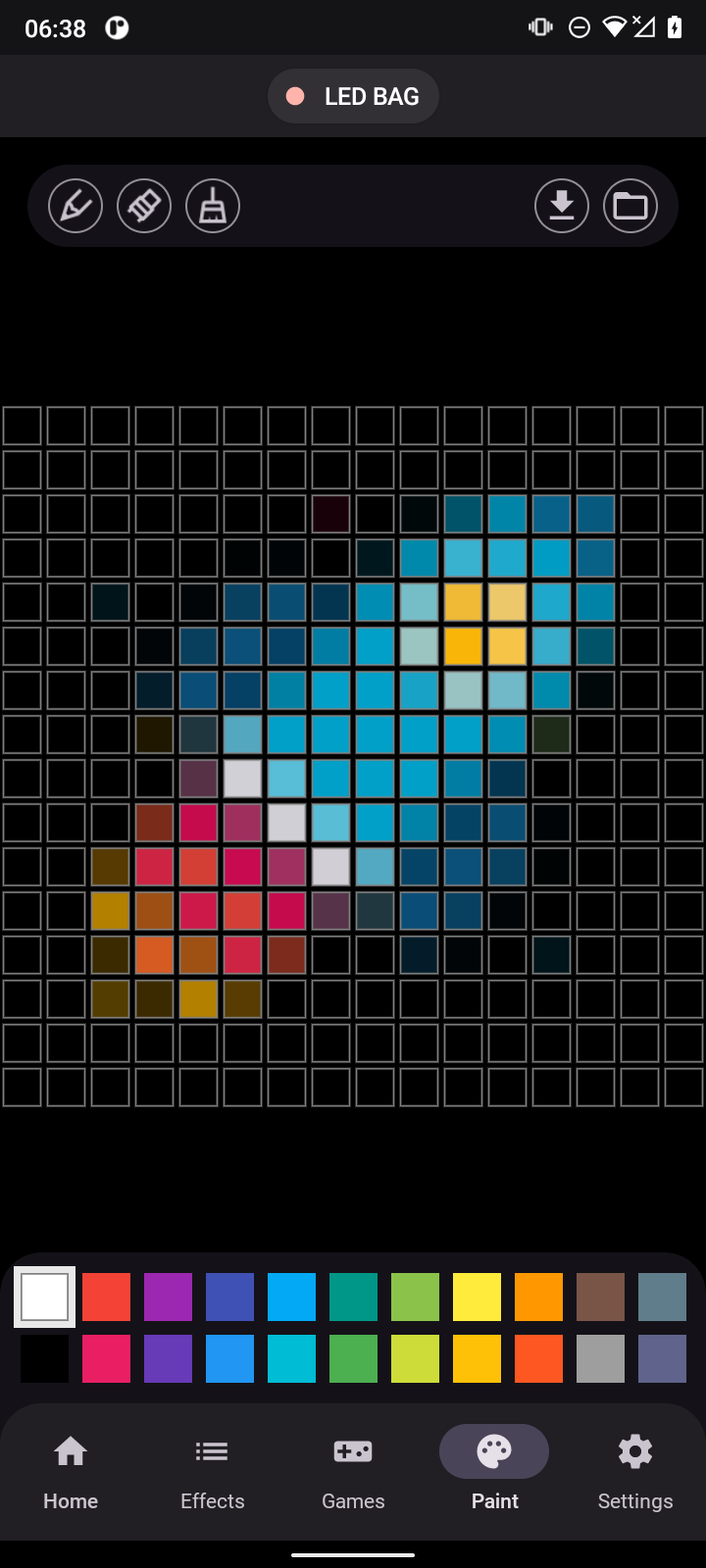
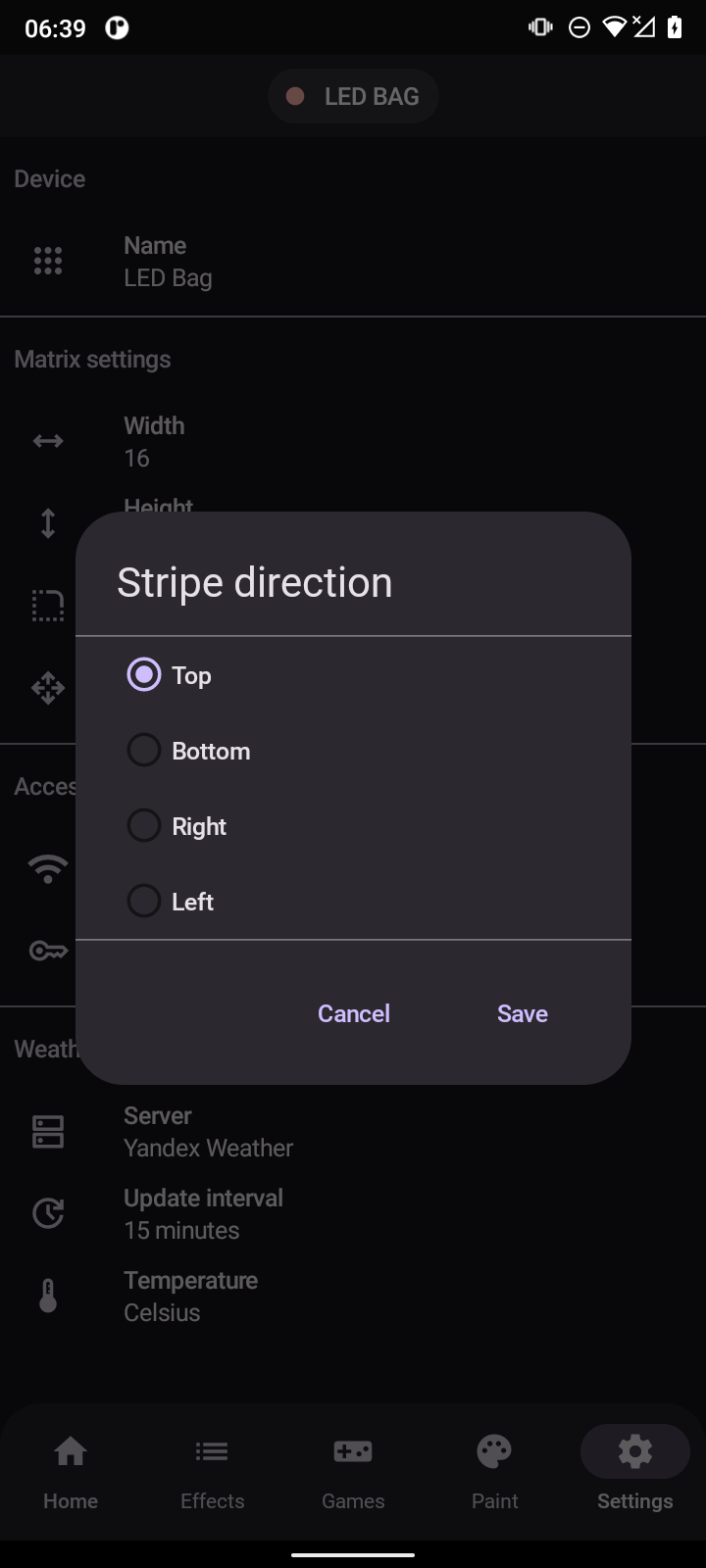
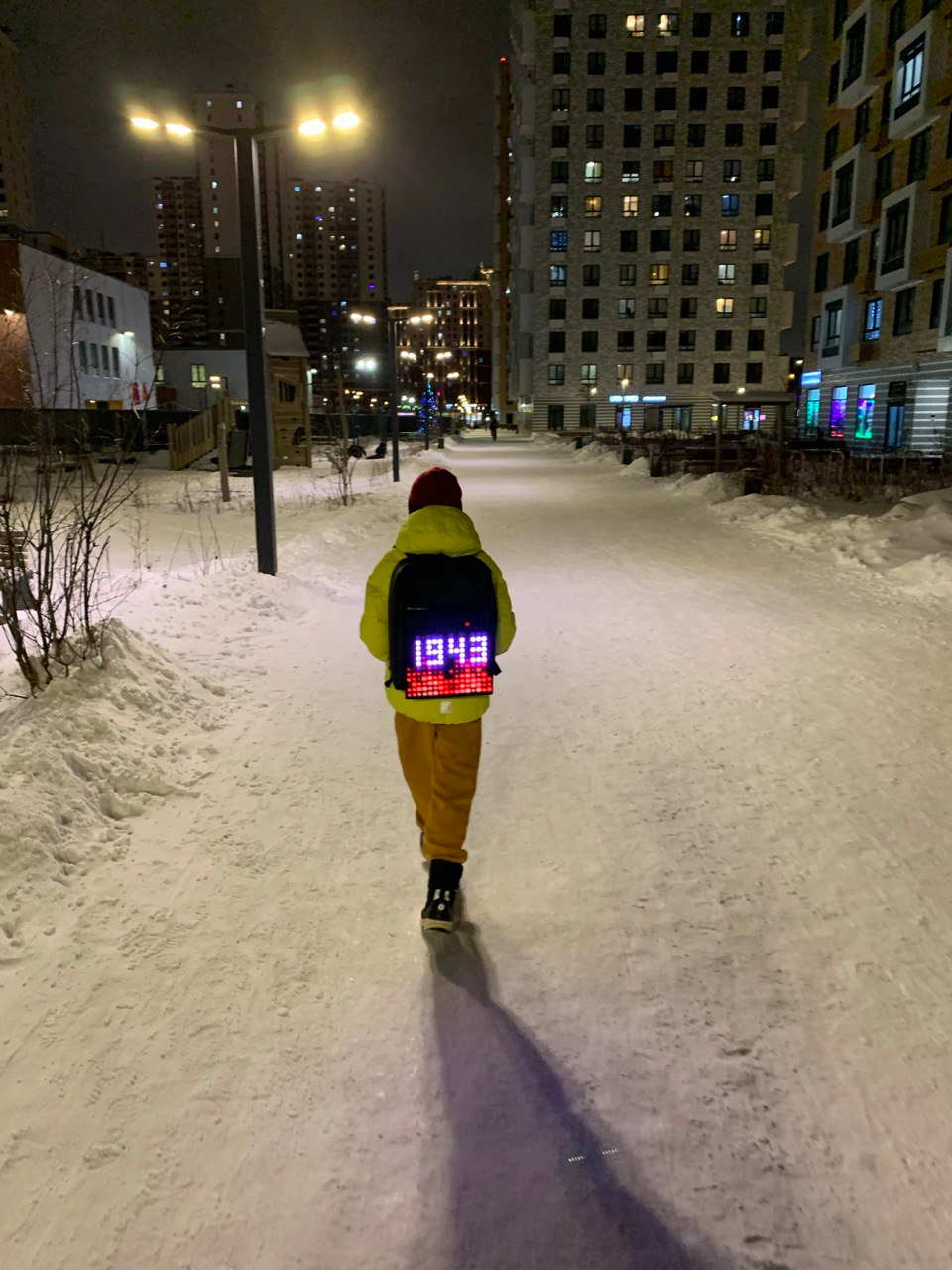
We are happy to share with you our upcoming performances with FGX Native at the large Delphi CodeGear summer camp. We are creating a mobile application with Delphi and FGX Native to control a DIY smart backpack with an LED panel over WiFi. We will show techniques of navigation between the screens of a mobile application. Introducing the concept of LiveData for updating the UI when updating data.

  • Title: A smart backpack controlled from a mobile application with FGX Native
  • Presenter: Brovin Yaroslav
  • Scheduled: 22 August: 11:00 AM (CST), 19:00 (MSK)
  • Linkhttps://www.codegear.com/DevDaysofSummer/

6 Comments

Recommended Comments

r3h0soft

Members

Отлично, ждём)

Multsoft.com

Active subscription

Congratulations, excellent presentation... I am very satisfied with FGX. I hope you make the sources available so I can improve my codes and use better techniques. Thank you

  • Administrators
30 minutes ago, Multsoft.com said:

Congratulations, excellent presentation... I am very satisfied with FGX. I hope you make the sources available so I can improve my codes and use better techniques. Thank you

Thank you very much for your feedback. We appreciate it. Yes, we'll post the source code a little later.

Stefan Diestelmann

Active subscription

Did you already provide the source for the App - to learn from it ?

  • Administrators
2 hours ago, Stefan Diestelmann said:

Did you already provide the source for the App - to learn from it ?

Hello,

Considering that this is an unfinished project and it was developed purely for the webinar and my own needs, I just posted it as-is

Thank you

Recently Browsing 0

  • No registered users viewing this page.

Account

Navigation

Search

Configure browser push notifications

Chrome (Android)
  1. Tap the lock icon next to the address bar.
  2. Tap Permissions → Notifications.
  3. Adjust your preference.
Chrome (Desktop)
  1. Click the padlock icon in the address bar.
  2. Select Site settings.
  3. Find Notifications and adjust your preference.